QFloat Manual · 1 of 11
Getting Started
On this page
What QFloat is, how to show and hide the floating panel with ⌥Space, the window controls and keyboard shortcuts, and the menu bar or Dock.
What QFloat is #
QFloat is a floating panel on the left or right edge of your screen. It holds the folders, files, apps and links you use most. Click one and it opens: folders in Finder, files in their app, apps launch, links open in your browser.
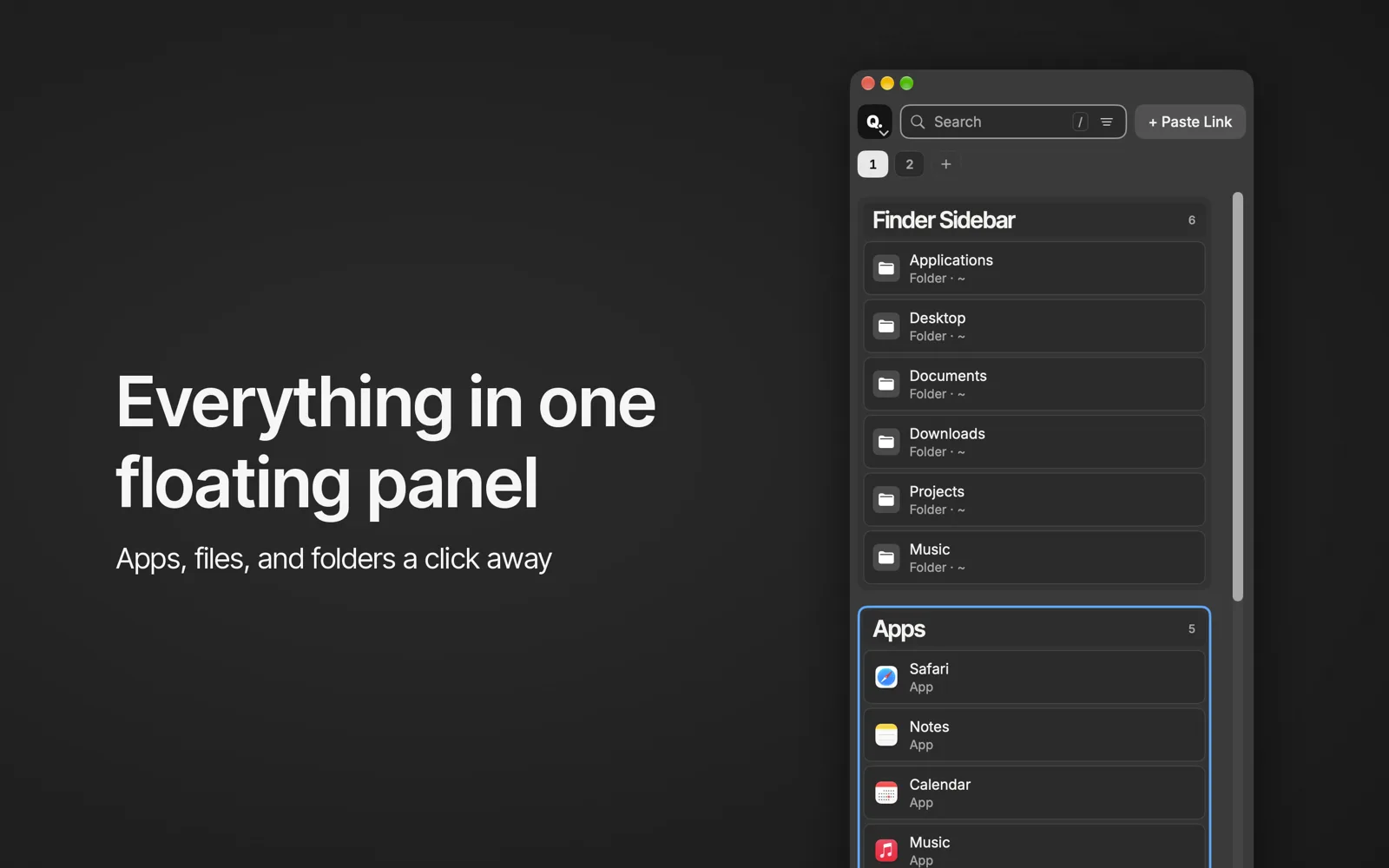
Show and hide the panel #
- Press ⌥Space from any app to show or hide QFloat. To use a different shortcut, record one in Settings › Hotkeys.
- The close button hides the panel. The minimize button rolls it up, and so does double-clicking the title strip. The zoom button toggles full height.
Shortcuts #
| Keys | Does |
|---|---|
| ⌥Space | Show or hide QFloat |
| ⌘W | Hide the panel |
| ⌘M | Roll up |
| ⌘, | Settings |
| ⌘Q | Quit |
Menu bar or Dock #
QFloat can sit in the menu bar, the Dock, or both. One of them must stay on. Choose in Settings › General.