QFloat Manual · 13 of 13
New in 1.1
On this page
New in QFloat 1.1: named page tabs, sorting and nesting groups, Duplicate, Copy to and Move to, Open and Close All, smarter pasting, edge snapping, a roll-up shortcut, a setup assistant and undo toasts.
Everything on this page is in QFloat 1.1. Features marked Premium need QFloat Premium, like the rest of the Premium features in this manual.
Pages and tabs #
- Named page tabs
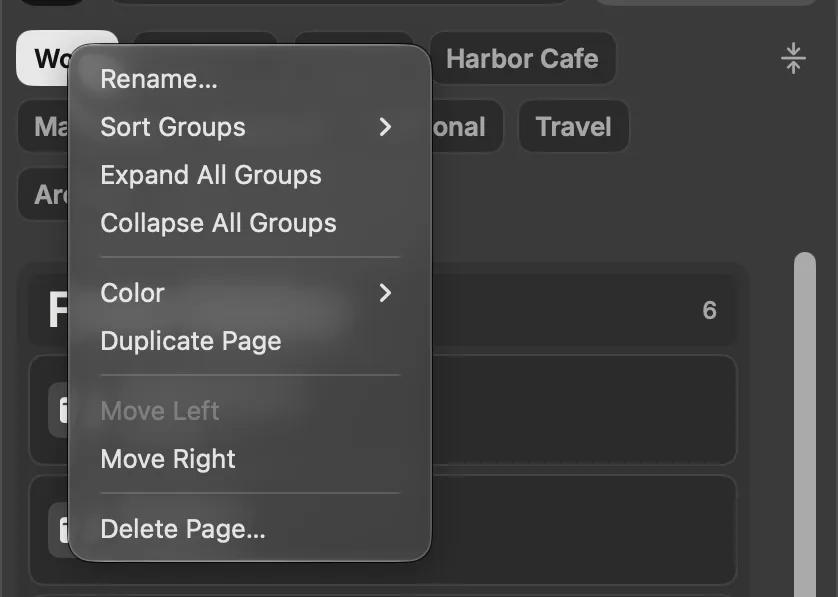
- Right-click a page tab and choose Rename…. A named page shows its name on its tab instead of a number. Clear the name and the tab goes back to its number. Page names also appear in toasts, search breadcrumbs and menus, for example “Moved Work to Travel”.
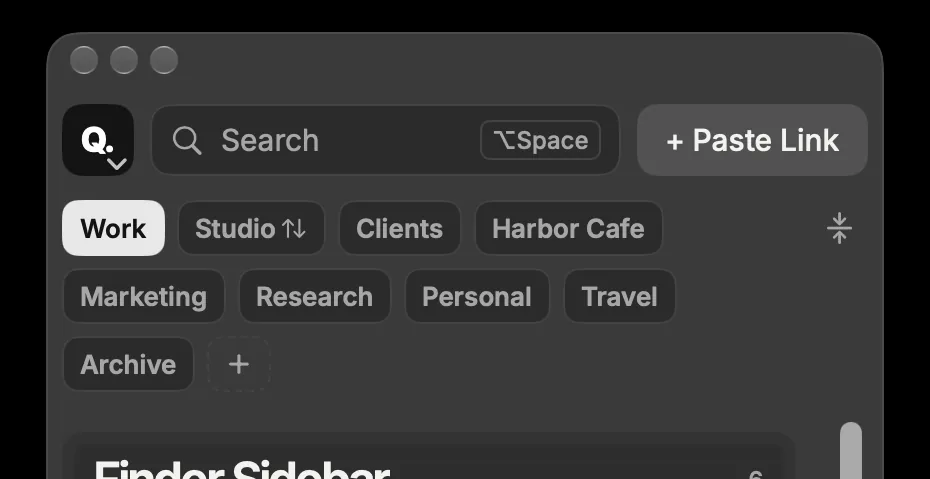
- Tabs that wrap
- When the tabs don’t fit across the panel, they wrap onto more rows instead of being cut off.
- Reorder pages
- Drag a page tab onto another tab to move it there, even across wrapped rows. The page keeps its name, color and groups. Click Undo in the toast or press ⌘Z to put it back. Move Left and Move Right are still in the tab’s right-click menu.
- Sort Groups
- Right-click a page tab (or use the View menu) and choose Sort Groups: Custom, A to Z or Z to A. A sorted page shows a small ↑↓ badge on its tab. Drag a group on a sorted page and the page switches back to Custom.
- The Sort button
- The ↑↓ button in the page bar, just left of Expand All and Collapse All, sorts the groups on the current page: Custom (your own order), A to Z or Z to A. The current choice has a check mark, and each page remembers its own. Libraries from 1.0 open as Custom with their order unchanged.
- Sorted, then rearranged
- Drag a group to a new spot on an A to Z or Z to A page and the page switches to Custom. The alphabetical order becomes the starting point and every other group stays where it was. One ⌘Z undoes both.
Opening, closing and nesting groups #
- Open All and Close All
- Press ⌥⌘→ to open every group on the page, or ⌥⌘← to close them all. Groups inside groups are included. There’s also a button at the right end of the page bar, and Expand All Groups and Collapse All Groups in the page tab’s right-click menu.
- ⌥-click an arrow
- Hold ⌥ and click any group’s arrow to open or close every group at once.
- Collapse Others
- In a group’s ⋯ menu, Collapse Others opens that group and closes the rest on the page.
- Drop a group into another group (Premium)
- Drag a group’s header onto another group’s header or items and it becomes that group’s last subgroup, bringing its items and its own subgroups along. The target group shows a dashed outline. Dropping in the gap between groups, or on the top edge of a header, reorders instead. Click Undo in the toast or press ⌘Z to put it back.
- Drag a subgroup back out
- Drag a subgroup’s header into the gap between top-level groups and it becomes a top-level group there.
- Nesting limits
- A group can’t go into itself or one of its own subgroups, into or out of Finder Sidebar, or deeper than 4 levels. Nesting works within one page. To nest a group on another page, drop it on that page’s tab first, then nest it there.
Duplicate, Copy to and Move to #
- Duplicate (⌘D)
- Select one or more items and press ⌘D. The copy appears right below the original in the same group, with no dialog. It doesn’t work while you’re renaming or typing in Search.
- Duplicate…
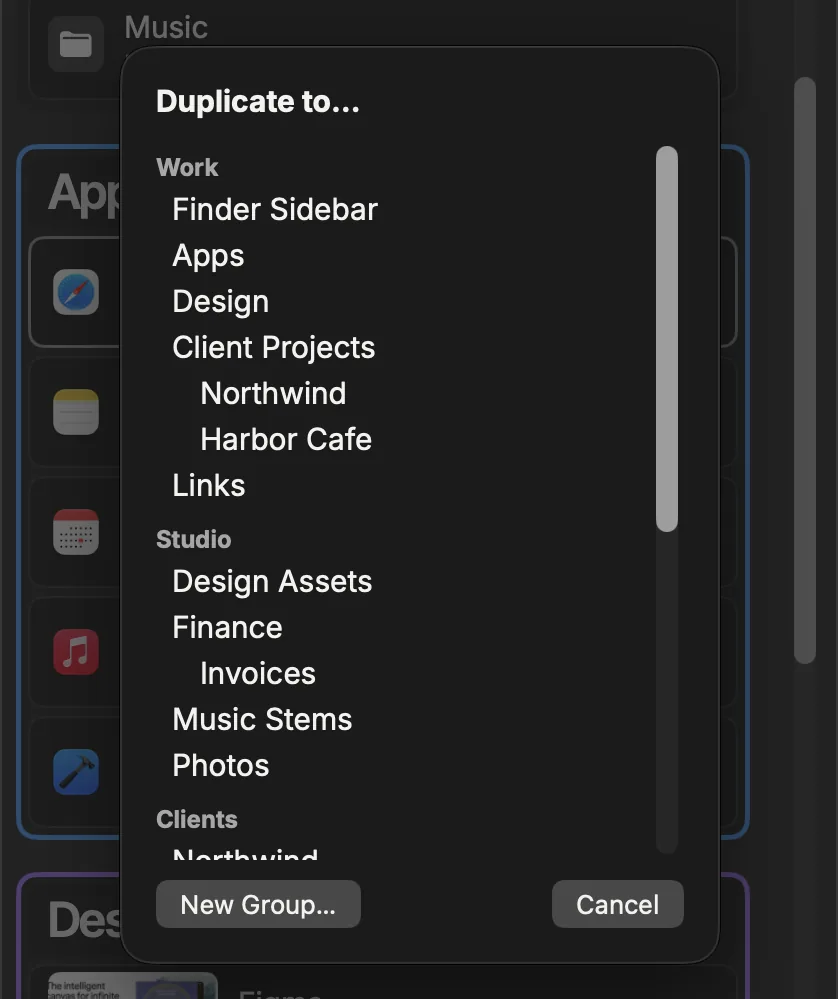
- Right-click an item and choose Duplicate… to pick where the copy goes. The sheet lists every page with its groups. New Group… makes an “Untitled Group” for the copy. Cancel makes no copy.
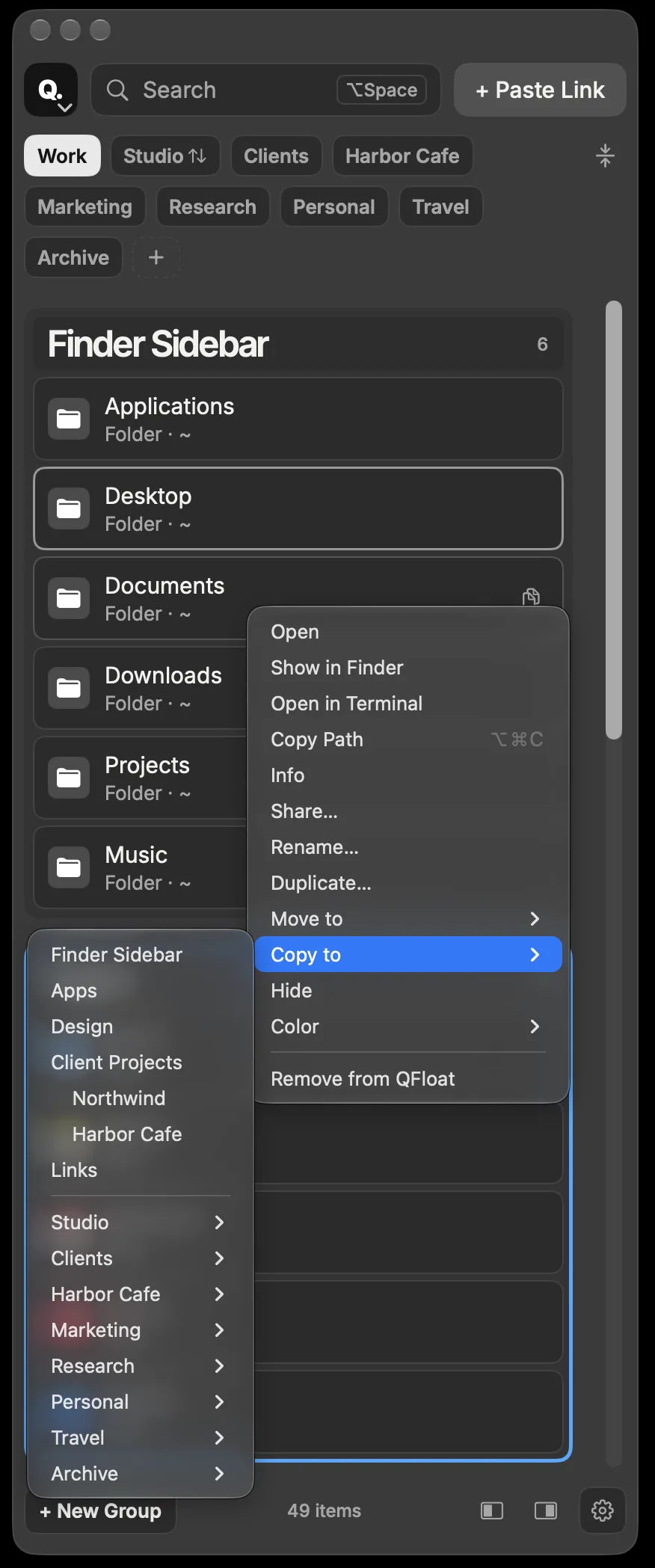
- Copy to ›
- Copies the item into any group on this page, or on another page through that page’s submenu. The original stays where it is.
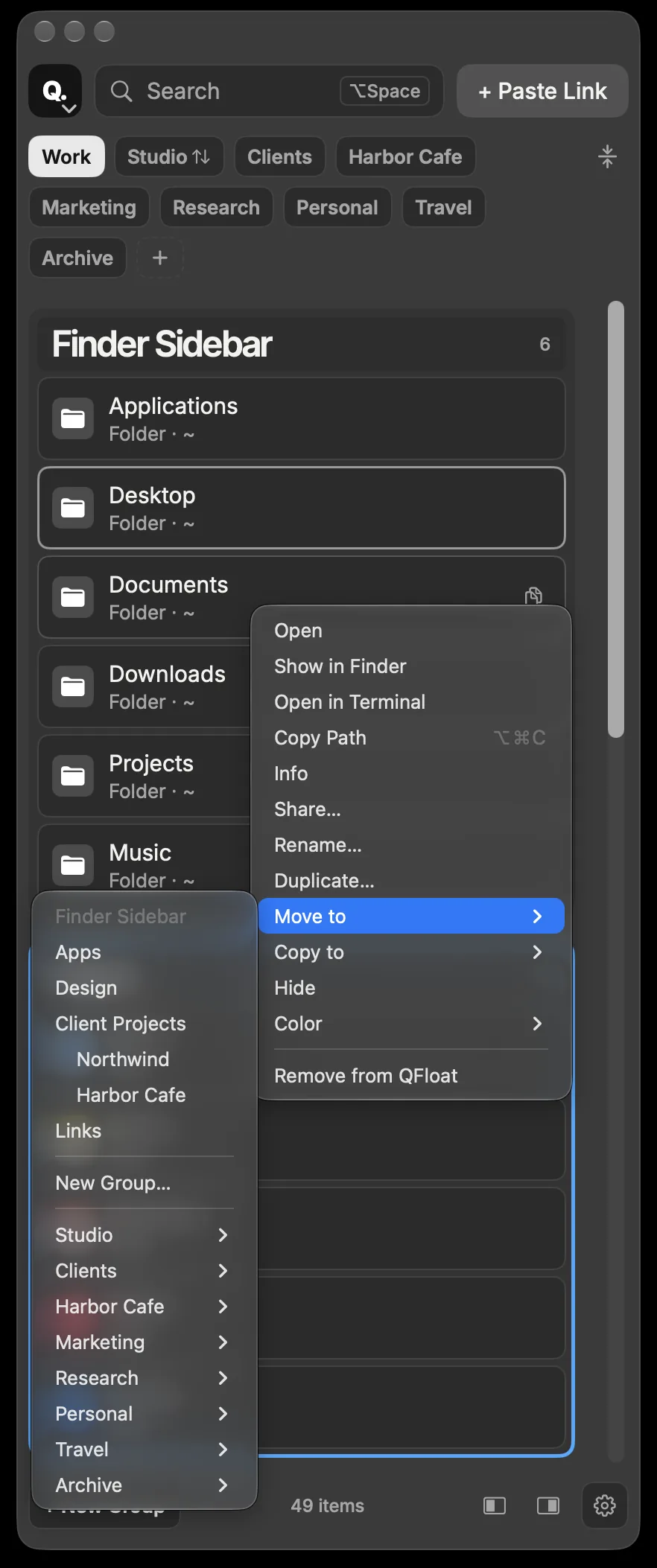
- Move to ›
- Moves the item to another group or page. Its current group is greyed out. New Group… puts it in a new “Untitled Group” just below. Works with several items selected, and one ⌘Z puts everything back.
- The same item in several groups
- An item can be in as many groups and pages as you like. Each copy has its own name, color and hidden state. QFloat only warns “Already in <group>” if the group you’re adding to already has it, and offers Show or Add anyway.
Pasting and adding #
- Where pasted links go
- Pasted and added items go to the selected group (or the group of the selected item). If nothing is selected, they go to the group you last clicked on this page, then to the first group that can take them. Locked, hidden and Finder Sidebar groups are skipped. If no group fits, QFloat makes an “Untitled Group” ready to rename, and one Undo removes both.
- “Added to <Group>”
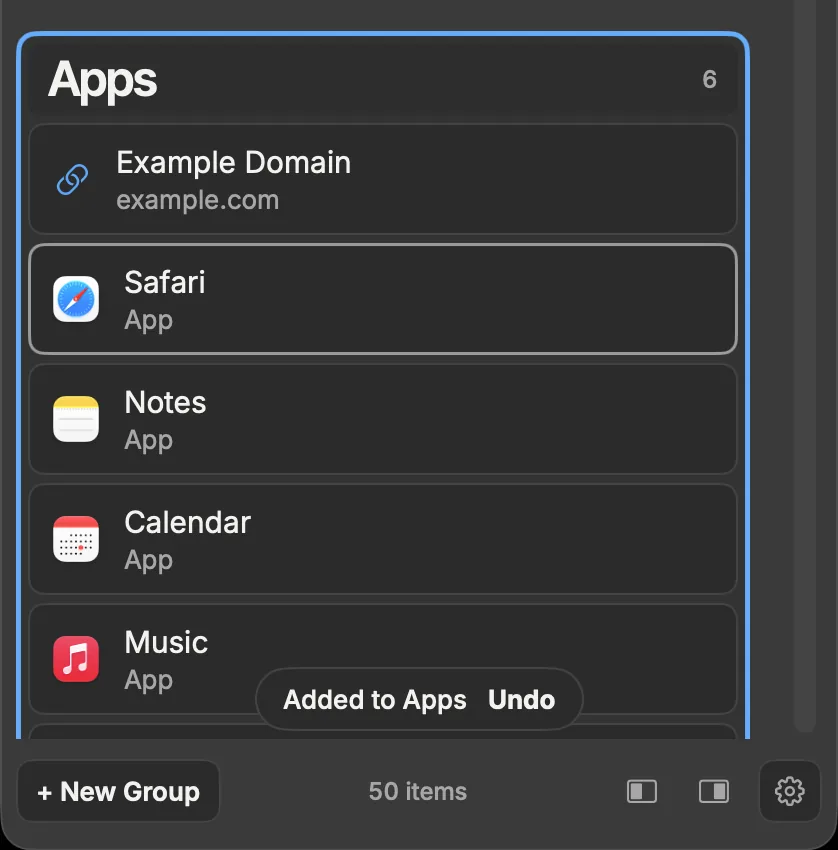
- Paste with a group focused (outlined), and the new item goes to the top of that group, the group gets a brief outline, and a toast names it, for example “Added to Apps”, with Undo. If the group is closed, it stays closed: its header pulses and its count goes up.
- Paste Link Here
- Use a group’s ⋯ menu › Paste Link Here to paste into that exact group.
- ⌘V in text fields
- While you’re typing in Search, a rename, the PIN or Settings, ⌘V pastes text there. Everywhere else it’s Paste Link.
- Smarter clipboard chip
- The “Add to” chip only lists groups that can take links. QFloat just checks whether the clipboard looks like a link, and only reads it when you click Add.
- Finder Sidebar and links
- Links can’t go into Finder Sidebar. To let them, turn on Use for Pasted Links in its ⋯ menu.
Custom sort #
- Drag to reorder a sorted group
- Drag an item in an A to Z (or other sorted) group and the order you see becomes the Custom order. Switch back to Custom later and your saved order comes back. One ⌘Z undoes both.
Subgroup colors #
- Apply To on “Same as parent” (Premium)
- A subgroup that follows its parent’s color can choose its own Apply To: Header Only, Entire Group, or Header and All Items. Right-click the subgroup’s header (or click its ⋯ button) and choose Color › Apply To. The check mark shows where the color is drawn. Choose “Same as parent” again to go back to the parent’s color and the parent’s Apply To. Colors are outlines only, and like all group colors they’re Premium.
The panel #
- Roll up from the keyboard
- Press ⌃⌥Space from any app to roll QFloat up to its header bar, and again to open it. It’s the same as double-clicking the header or clicking the yellow button. ⌘M does the same while QFloat is in front. If QFloat is hidden, ⌃⌥Space shows it opened up. ⌥Space still shows and hides QFloat. You can see the shortcut in Settings › Hotkeys and the Q. menu. If you set the show and hide shortcut to ⌃⌥Space, show and hide keeps it and the roll-up shortcut steps aside.
- Snap by dragging
- Drag the panel near the left or right edge of the screen and let go. It snaps to that side, 8 points in. Hold ⌥ while you drag to skip the snap.
- Snap Left and Snap Right buttons
- Two grey buttons at the bottom of the panel, just left of the Settings gear. One click moves the panel to the top-left or top-right of the screen it’s on.
- ⌘L and ⌘R
- While the panel is active, ⌘L snaps it left and ⌘R snaps it right. They don’t work while you’re typing in a text field. While hidden items are shown, ⌘L still hides them again.
- It remembers your side
- There’s no Left/Right Edge picker any more. QFloat remembers the side you last snapped to and opens the panel there.
- Turning snapping off
- Settings › Panel has a Snap to screen edges switch, on by default, along with Width and Spaces. Turn it off and the panel stays wherever you drop it.


First-time setup #
- Setup assistant
- The first time you open QFloat, a short setup assistant walks you through the basics.
- Launch at login
- Launch at login is off by default. QFloat only opens at login if you switch it on yourself, in setup or in Settings.
- Run setup again
- Go to Settings › General and choose Run setup again.
Help button #
- ? button
- The ? button in the page bar, next to Sort, Expand and Collapse, opens this online manual in your browser.
Feedback #
- Undo toasts
- Drops, moves and removes show a toast with Undo for 8 seconds. Adds and pastes show a short confirmation for 3 seconds, and things QFloat can’t do show a note for 2.
- Copy Path and Copy Link
- After you copy, the button shows a check mark and “Path Copied” or “Link Copied” for a moment.
New shortcuts #
| Shortcut | Action |
|---|---|
| ⌘D | Duplicate the selected item(s) |
| ⌥⌘→ / ⌥⌘← | Open all / close all groups |
| ⌥-click an arrow | Open or close all groups |
| ⌥ while dragging the panel | Place it without snapping |
| ⌃⌥Space | Roll QFloat up or open it again, from any app |
| ⌘M | Roll up while QFloat is in front |
| ⌘L / ⌘R | Snap the panel left / right (not while typing; ⌘L hides hidden items again while they’re shown) |
Your library #
- Finder Sidebar migration
- The first time you open 1.1 after using 1.0, QFloat recognizes your Finder Sidebar group, even if you renamed it, and marks it as a system group. Nothing in it changes.
Not in 1.1 #
These aren’t part of 1.1: more than one panel, separate shortcuts for each group (QFloat has app-wide shortcuts for show and hide and for roll up, but not one for each group), importing or exporting your library, and syncing between Macs. iCloud keeps backups of your library; it doesn’t sync it.