SwiftList Manual · 7 of 19
Monthly Insights
On this page
Insights looks back at a month: what was due, what you finished, and whether it was on time. It is part of Premium, and it is worked out on your device.
Opening Insights #
- iPhone and iPad: the Insights button in the toolbar.
- Mac: More (…), Insights…, or ⇧⌘I.
On Free, Insights shows what it does and a See Premium button.
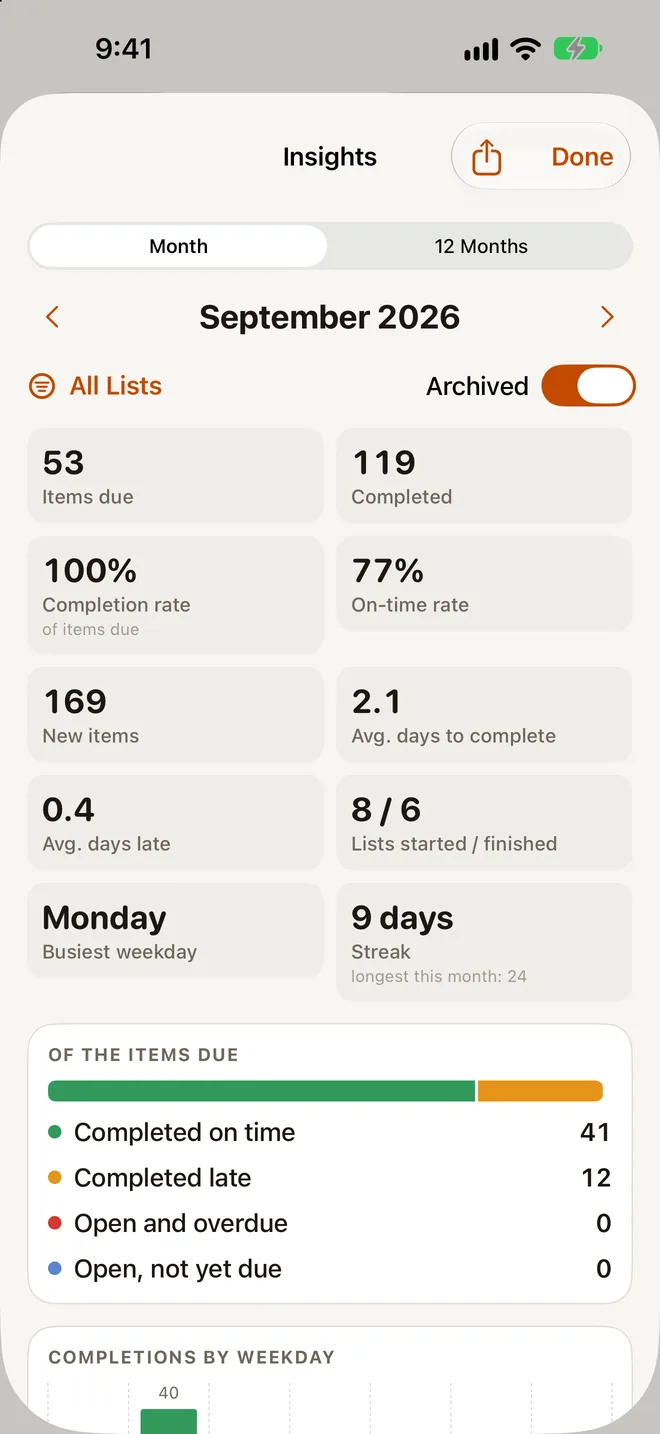
Choosing the period and scope #
- Pick a month with Previous month and Next month (⌘← and ⌘→), or choose one directly. Or switch to Last 12 Months.
- Scope: All Lists or A List.
- Include archived items decides whether archived items count.
What it shows #
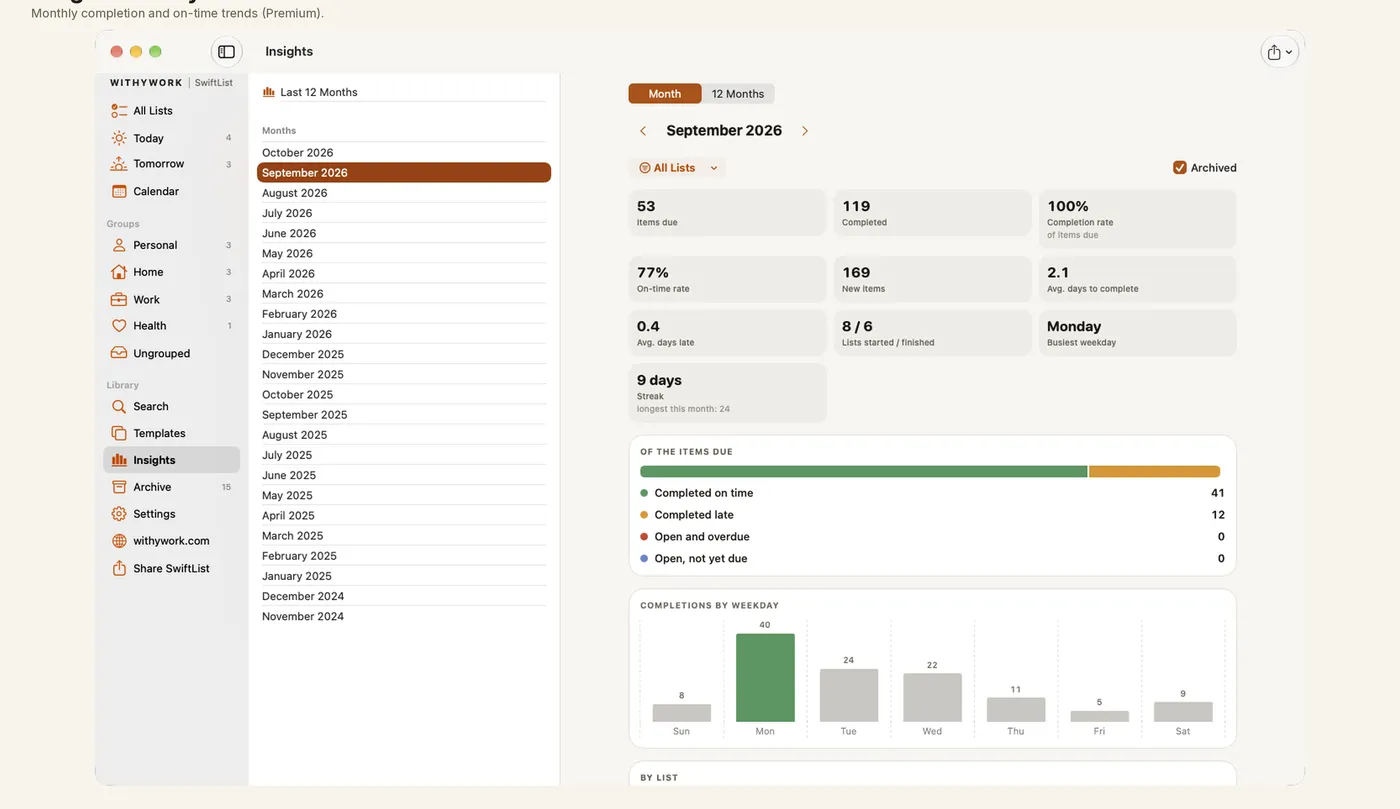
- Items due and items completed.
- On time, late and still overdue, with completion and on-time rates.
- Items created, average days to complete, and days late.
- Lists started and lists finished.
- “Completions by weekday” and streaks.
- Breakdowns by list, group and color tag.
- A 12-month trend: “Due and completed items per month, with the completion rate.”
Why the completed date matters #
On time and late are worked out from the date you marked an item done. If you checked something off late but did it on time, open its Details and change Completed. Deleted items are gone from Insights too. Archived items count when Include archived items is on.
Export a report #
Export report offers PDF Report, Markdown, CSV, Month by Month and CSV, Item Details.