SwiftList Manual · 12 of 19
SwiftList on iPad
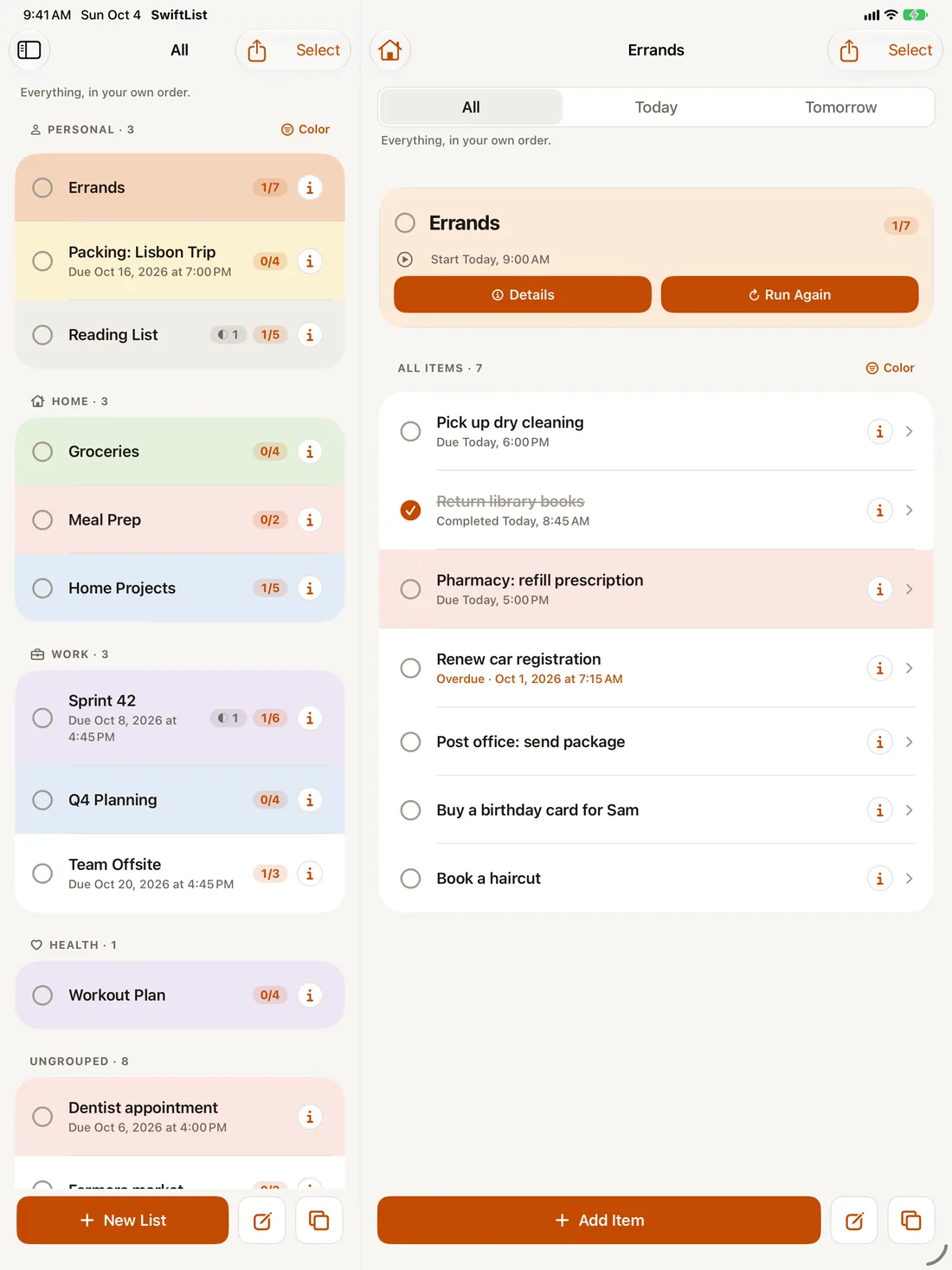
On iPad, SwiftList spreads out into three columns, so you can see where you are and where things are going.
The three-column layout #
- Sidebar: the filters, your groups, Search, Settings, and the WITHYWORK | SwiftList wordmark.
- Lists: the lists for the filter or group you picked.
- List and item: the open list.
Settings is in the sidebar. That’s also where you find SwiftList Premium and Restore Purchases.
Multitasking #
Split View, Slide Over and Stage Manager work in every orientation. When SwiftList is narrow, it switches to the iPhone layout.
Drag and drop #
Drag rows to reorder, drop on a row to nest, or drop on a list in the lists column to move. See Lists and nesting.
Keyboard shortcuts #
With a hardware keyboard, most Mac shortcuts work on iPad too: ⌘N, ⇧⌘N, ⌘Return, ⌘F, ⌘,, ⇧⌘T, ⇧⌘I, ⌘[ and ⌘Z. The full table is on the Mac page.