SwiftList Manual · 13 of 19
SwiftList on Mac and in the menu bar
On this page
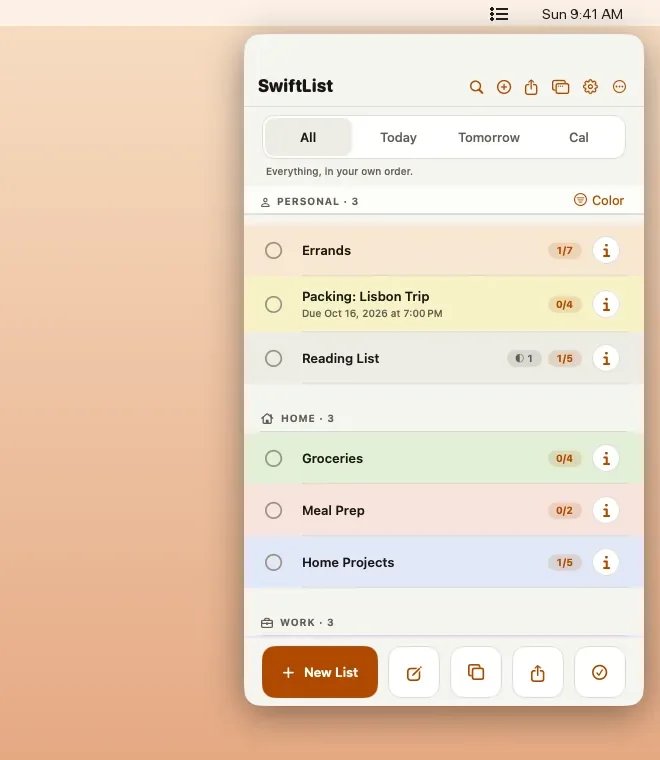
On the Mac, SwiftList lives in the menu bar. Click the icon and your lists drop down. With Premium you can pop them out into a full window.
The menu bar window #
Click SwiftList in the menu bar. The popover uses the iPhone layout. Along the top:
- Back and Top level (“Back to top level”).
- Search (⌘F) and Quick Add (⌘Return).
- Share: “Share to Notes, Mail, Messages…”.
- Pop Out (⇧⌘O) and Settings (⌘,).
- More (…): Open at Login, Show in Dock, Insights…, Share SwiftList…, WithyWork Website and Quit SwiftList (⌘Q).
A note on dialogs in the popover #
In 2.0, some sheets and confirmations open as their own windows, and clicking in them can close the popover. If that happens during Move, for example, just open SwiftList from the menu bar again. Using the Pop Out window avoids it.
New in 2.0.1: Move, New List, templates, Quick Add, Search, Move to Date and delete confirmations open inside the popover, so it stays open. Settings screens in the popover also no longer show a second “‹ Back” link under the round header button.
The Pop Out window (Premium) #
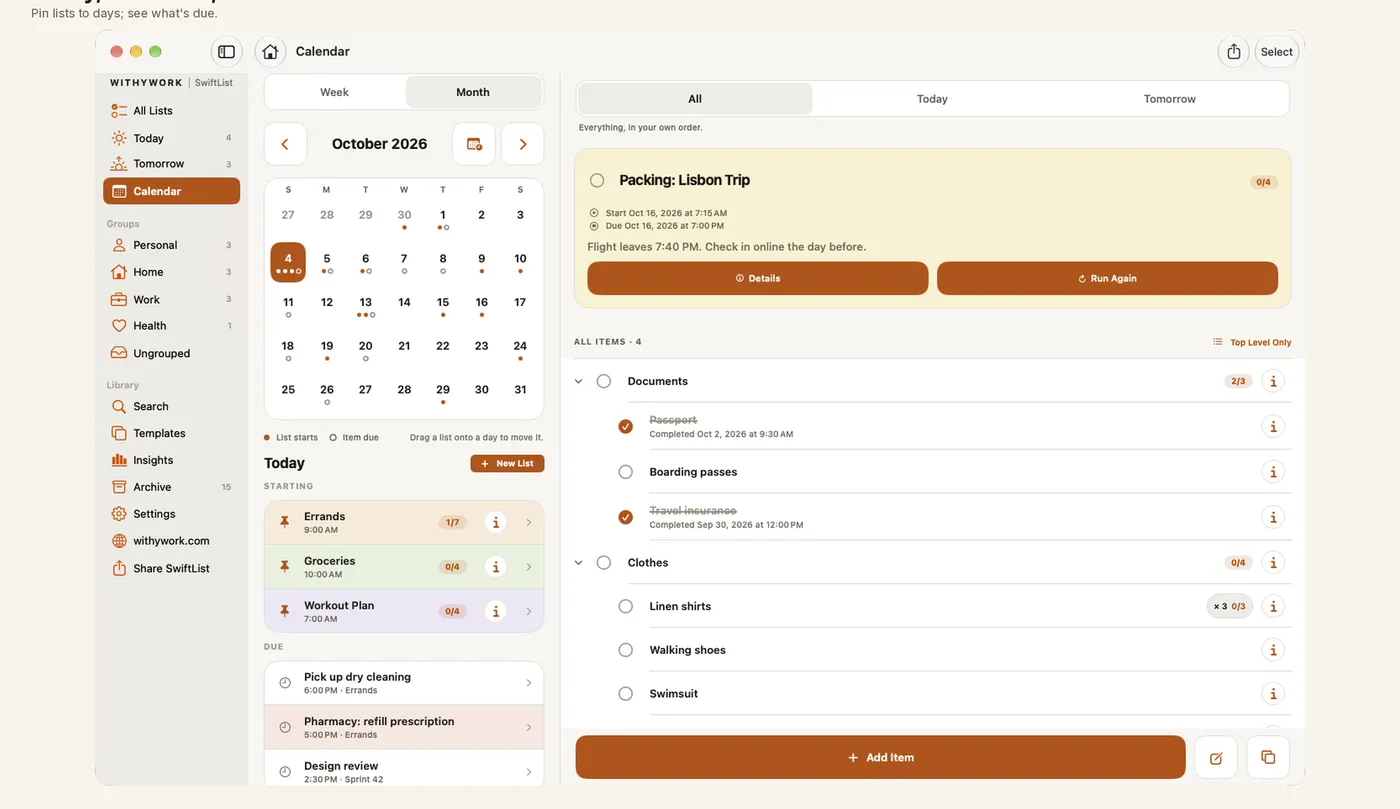
Click Pop Out or press ⇧⌘O for a resizable window with the same three-column layout as iPad, plus drag and drop. Hold Option while dragging to copy.
List windows and New Window (Premium) #
New in 2.0.1 Premium, like Pop Out.
- Open in New Window, in a row’s right-click menu or the popover’s More menu while a list is open, opens that list in its own resizable window. It uses the compact layout, is fully editable and stays live with every other window.
- The Float on Top pin in the toolbar keeps that window above other apps’ windows. Each list window remembers its size, position and pin. Open as many as you like, to compare lists or plan a day.
- New Window (File menu, ⌥⌘N, or the popover’s More menu) opens another full SwiftList window with its own navigation.
- If a list is deleted somewhere else, its window closes. Multiple windows aren’t on iPad yet.
Quick Add from anywhere (Premium) #
Press ⌃⌥⌘N in any app to add an item without leaving what you’re doing. It doesn’t need Accessibility permission. Turn it on or off in Settings, Mac, Quick Add from anywhere.
Open at Login and Show in Dock #
- Open at Login starts SwiftList when you log in. macOS may ask you to approve it in System Settings, General, Login Items. SwiftList shows Open Login Items Settings… when that’s needed.
- Show in Dock: “Off: SwiftList lives in the menu bar only.” Turn it on for a Dock icon and a menu bar menu with Quick Add… and Insights.
Free on the Mac #
The menu bar app is free. The Pop Out window and Quick Add from anywhere are part of Premium (“The full Mac app”). Because SwiftList is a universal purchase, Premium bought on iPhone covers the App Store Mac app too.
AI assistants on the Mac #
SwiftList for Mac includes a local MCP server for AI apps such as Claude. It is off until you turn it on. See MCP and AI assistants.
Keyboard shortcuts #
These work in the Mac app, and most work on iPad with a keyboard.
| Keys | Does |
|---|---|
| ⌘N | New List |
| ⇧⌘N | Add Item inside the open list |
| ⌘Return | Quick Add |
| ⌃⌥⌘N | Quick Add from any app (Mac, Premium) |
| ⌘F | Search, also inside the Move dialog |
| ⌘, | Settings |
| ⇧⌘T | Templates |
| ⇧⌘I | Insights |
| ⌘← and ⌘→ | Previous and next month in Insights |
| ⇧⌘O | Pop Out the menu bar window (Mac) |
| ⌥⌘N | New Window (Mac, 2.0.1) |
| ⌥⌘/ | Show Tooltips on or off (Mac, 2.0.1) |
| ⌘[ | Back up one level |
| ⌘Z | Undo |
| Tab or ⌥⌘→ | Indent, in Select mode |
| ⇧Tab or ⌥⌘← | Outdent, in Select mode |
| ⌥⌘↑ and ⌥⌘↓ | Move Up and Move Down, in Select mode |
| ⌘S | Save in the outline editor |
| Return and ⌘Return | In New List: next item line, and create the list |
| Esc | Cancel or close a sheet |
| Arrows, Return, Esc | In the Move dialog: pick a row, go in or back, Move Here, Cancel |
| ← and → | Previous and next photo in the viewer |
| ⌘Q | Quit SwiftList (Mac) |