SwiftList Manual · 4 of 19
Templates and Run Again
On this page
Many lists come back: groceries, packing, a weekly reset. Templates and Run Again mean you build them once.
New from Template #
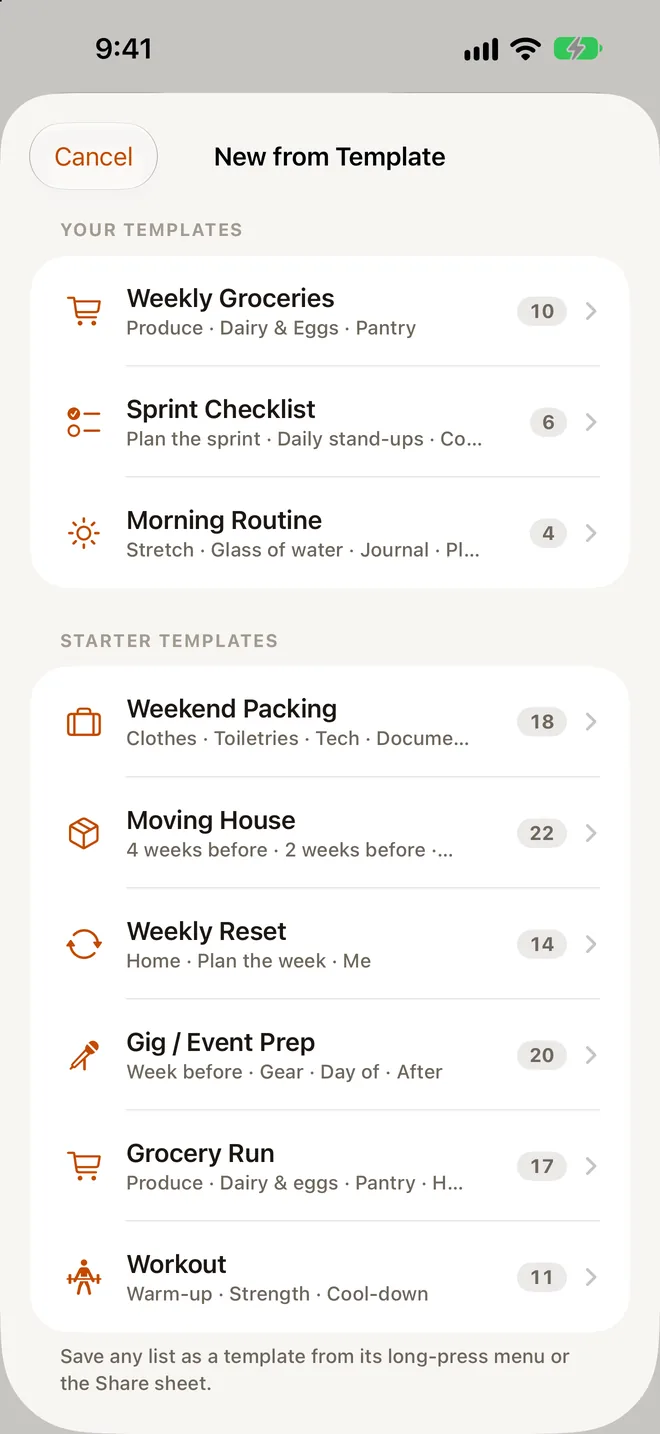
Open New from Template from New List, or press ⇧⌘T on iPad or Mac. There are two sections:
- Starter Templates: Weekend Packing, Moving House, Weekly Reset, Gig / Event Prep, Grocery Run and Workout. These are free.
- Your Templates: the ones you saved.
Where and when #
Under Where & When choose:
- Add as: a New list, or inside an existing list.
- Group for a new list.
- Starts: a start date. “Due dates inside the template move with the start date.”
Save as Template #
Long-press any list or item with sub-items and choose Save as Template…. Give it a Name and an Icon. The template keeps titles, nesting, notes, colors and quantities, and keeps dates relative to the list’s start. Check marks, photos, memos and alerts are left out, so it always starts fresh. Archived items inside aren’t included.
Free includes 1 template of your own. Premium has no limit. In 2.0 a saved template can’t be edited or renamed. To change one, make the list the way you want and save it again.
Run Again #
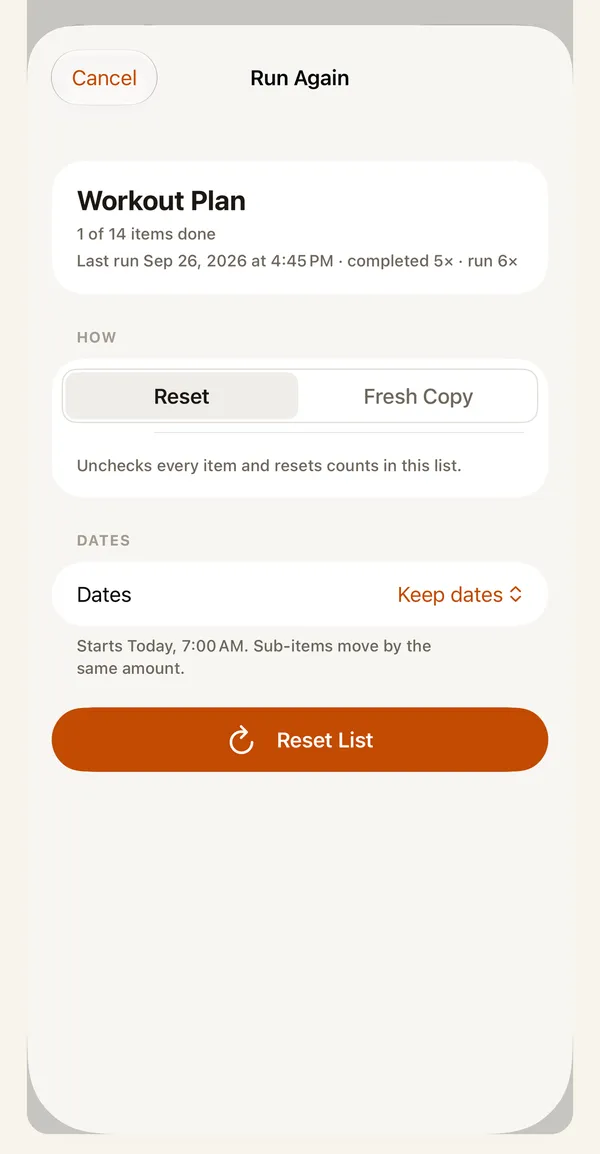
When you finish a checklist you’ll use again, long-press it and choose Run Again…. It works on any row with sub-items.
How #
- Reset unchecks the same list so you can go again. The banner says “List reset. Go again!”
- Fresh Copy leaves the finished one as it is and adds a new copy. The banner says “Fresh copy added”. On Free this counts as a new list.
Dates #
- Keep dates
- Move by days
- Move by weeks
- New start date
Every date inside moves by the same amount.
Archive the finished list #
With Fresh Copy, turn on Archive the finished list to tidy the old one away. It goes to the Archive, where you can restore it.
Run history #
SwiftList keeps a count of how often a list has been run again and when it last ran. The run line on the sheet shows it, and AI assistants can read it with the lists_history tool.