SwiftList Manual · 5 of 19
Today, Tomorrow and Calendar
On this page
The filters at the top of the home screen answer one question each: what is there, what is open, and what is on today.
The filters #
At the top level the filters are All, All Open, Today, Tomorrow and Calendar. Inside a list you get All, Today and Tomorrow. Today and Tomorrow show a count, like “Today · 3”, and a line underneath says “Showing: …”.
All #
Everything, in your order. A new install starts here.
All Open #
Every open item from every list in one place, soonest due first. Good for “what’s left?”
Today and Tomorrow #
By default (“Start, then due”):
- A list shows on the day it starts.
- Any item also shows on the day it is due.
- Today also shows open overdue items.
- A list that is only there because of a matching sub-item is shown dimmed.
Due date only #
If you only want due dates to count, change Today shows and Tomorrow shows to “Due date only” in Settings, Filters.
Calendar #
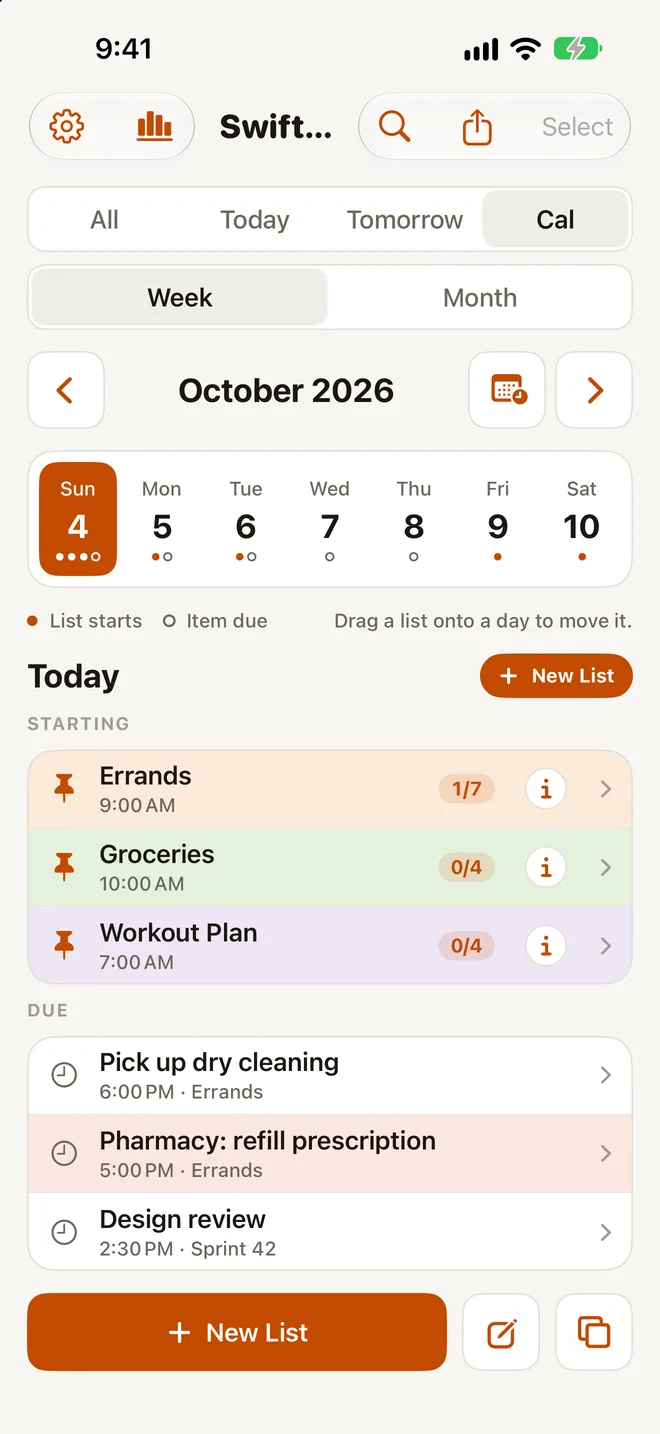
Choose Week for a strip of days or Month for a grid. A filled dot ● means a list starts that day. A hollow dot ○ means an item is due.
A day’s agenda #
Tap a day to see its agenda, in two sections: Starting and Due. Tap “New list on …” to start a list on that day. An empty day says “Nothing pinned to this day. Add a list, or drag one here.”
Moving a list to another day #
- Drag a list onto a day. The list and everything in it shift by the same amount, and a banner says “Moved to …”.
- Or use the row menu: Move to Next Day, Move to Next Week or Move to Date….
Getting around #
The toolbar has Go to date and Back to Today.