SwiftList Manual Settings Reference SwiftList Manual · 15 of 19
Settings reference
On this page
SwiftList by WithyWork Premium Sync Mac MCP Server Lists Completed Items Text Expansion Snippet tokens Filters Sharing Notifications Appearance Help More from WithyWork About Every setting, top to bottom, as it appears in SwiftList 2.0. The same Settings screen is used on iPhone, iPad and Mac. Some sections only show on one platform. Tap Done to close it.
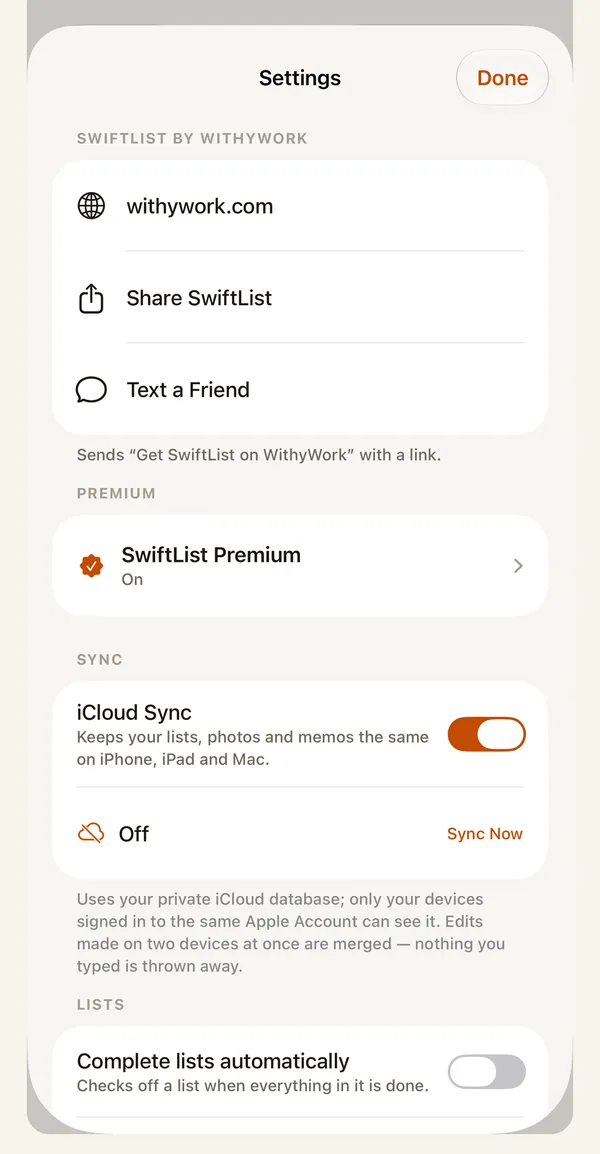
SwiftList by WithyWork #
iPhone and iPad. On the Mac these are in the sidebar and the More menu.
Setting What it does Default
Share SwiftList Opens the share sheet with “Get SwiftList on WithyWork” and a link. Text a Friend The same message in Messages. Falls back to the share sheet if the device can’t text.
Premium #
Setting What it does Default
SwiftList Premium Opens the Premium screen. “Unlimited lists, photos, scans and memos, iCloud sync and more.” Once you have Premium it says, for example, “Subscribed. Thank you!” or “Lifetime. Thank you!”. On Free, a line underneath shows your usage, like “Free: 2/3 lists, 2 levels deep”. Accent The app’s accent color: Saffron, Indigo or Sage. Indigo and Sage are Premium. Saffron App Icon Standard, Ink, Paper or Sage. The others are Premium. iPhone and iPad only. Standard
Sync #
Setting What it does Default
iCloud Sync Keeps lists, photos and memos the same on all your devices, through your private iCloud. Premium. Shows status, Sync Now and when it last synced. See iCloud sync . On, but only works with Premium
Mac #
Mac only.
Setting What it does Default
Open at Login Starts SwiftList when you log in. Shows Open Login Items Settings… if macOS needs your approval. Off until you turn it on. It shows what macOS reports. Show in Dock “Off: SwiftList lives in the menu bar only.” Off Quick Add from anywhere “Press ⌃⌥⌘N in any app.” Premium. On, with Premium Quit SwiftList Quits the app.
MCP Server #
Mac only. Lets AI apps on this Mac use your lists. All off by default. The full guide is on the MCP page .
Setting What it does Default
MCP server “On. AI apps you connect below can use SwiftList on this Mac.” Off means AI apps can’t connect. Off Allow changes “Connected AI apps can add, edit, check off, move and archive items.” Off is read-only. Off Allow deleting “Lets AI apps delete lists, items, groups and templates (on every device). Archiving doesn’t need this.” Needs Allow changes. Off Connect an AI app Copyable setup snippets for Claude Desktop or Cursor, and Claude Code, with this Mac’s real app path. Tools The tools AI apps can see right now. MCP Activity Recent calls through the running app, newest first. Clear Activity empties it. Kept in memory only.
Lists #
Setting What it does Default
Complete lists automatically “Checks off a list when everything in it is done.” Off Groups Make, rename and delete groups. See Groups . Archive Archived lists and items, with Restore. See Archive . Backup (Backup & Restore in 2.0)New in 2.0.1 : Back Up to iCloud Daily to iCloud Drive › SwiftList › Backups, Keep the Last N (1 to 7), Back Up Now and your iCloud backups with Restore and Delete. Export Everything… , Share Backup… , Restore from File… , and on-device Automatic backups . Free. See Backup and restore .iCloud daily off, keep 7; on-device automatic backups on
Completed Items #
Setting What it does Default
Move completed to the bottom Done items sort below open ones. Your order is kept within each. Off Hide completed Hides finished items after a while. Never deleted. Never, Right away, 1, 3, 7, 14, 30 days or Custom…. Never Show hidden completed “Brings them back everywhere. Each list can also show its own.” Off Archive completed Moves finished items to the Archive after Never, 7, 30, 90 days or Custom…. Never Delete Completed Items… Deletes all, older, or archived completed items, after saving a backup. Asks first, and offers Undo.
Text Expansion #
Setting What it does Default
Text expansion Turns snippets like ;d1 on or off everywhere. This setting stays on this device. On Snippets Edit each Trigger and Expansion, Add Snippet , see the Token Reference , or Restore Default Snippets . 8 built-in snippets
Snippet tokens #
An expansion can include {date:PATTERN}, {time:PATTERN}, {datetime:PATTERN} and {weekday}, where PATTERN is a date format such as yyyy-MM-dd. “The longest matching trigger wins.”
Filters #
Setting What it does Default
Today shows “Start, then due” or “Due date only”. See Today . Start, then due Tomorrow shows The same choice for Tomorrow. Start, then due
Sharing #
Setting What it does Default
Include dates “Adds start and due dates when you email or share a list.” Off
Notifications #
Setting What it does Default
Badge overdue items “Shows how many items are overdue on the SwiftList icon.” Alerts themselves are set per item in Details. Off
Appearance #
Setting What it does Default
Appearance Automatic, Light or Dark. Automatic
Help #
Setting What it does Default
Show Walkthrough Plays the first-run walkthrough again.
More from WithyWork #
WithyWork (withywork.com), Support (“Questions, bugs, or a feature you want.”), Privacy Policy and Facets . “These open in Safari.”
About #
Version shows the version and build. Underneath is SwiftList’s privacy statement, and a note if lists were brought over from SwiftList 1.x.
For SwiftList 2.0 and 2.0.1. Updated October 13, 2026.
Previous iCloud Sync and PrivacyNext Premium and PurchasesAll sections
1 Getting Started2 Lists and Nesting3 Items4 Templates and Run Again5 Today, Tomorrow and Calendar6 Search, Sharing and Export7 Insights8 Archive and Backups9 Scan and Voice10 Widgets, Sharing and Shortcuts11 Apple Reminders12 iPad13 Mac and Menu Bar14 iCloud Sync and Privacy15 Settings Reference16 Premium and Purchases17 MCP and AI Assistants18 Troubleshooting and FAQ19 Glossary