SwiftList Manual · 3 of 19
Items: dates, alerts, status, colors, notes and more
On this page
Each item is more than a line of text. Open its Details to add dates, alerts, notes, photos and more.
Item Details #
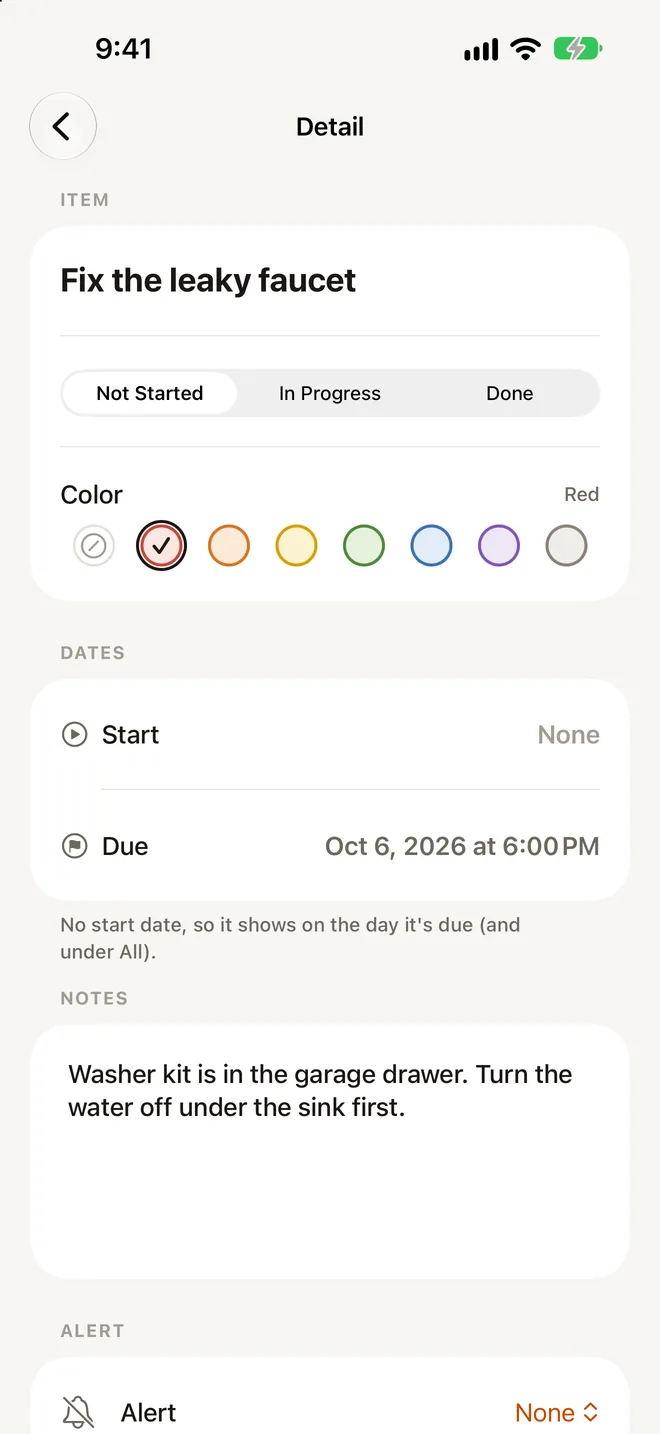
Tap the round (i) on a row, or choose Details from the row menu. Details is laid out in sections:
- Item: the title, Status, Color, and Group for top-level lists.
- Dates: Start and Due.
- Notes.
- Alerts.
- Quantity.
- Photos.
- Voice Memos.
- Sub-list: “Direct Sub-items (N)” and Set Sub-items’ Due Dates….
- Actions: Move…, Run Again, Save as Template, Add to Reminders, Send as SwiftList File, Archive and Delete.
Done, Parent list and Delete #
New in 2.0.1
- Done, the filled button at the top left of Details, takes you back to the item’s own screen. On the Mac window it replaces the small Done pill in the toolbar.
- Next to it, ‹ Parent list (shown with the list’s name) jumps straight to the list that contains the item. Long names are shortened, with the full name in the tooltip. It’s hidden for top-level lists.
- Delete (red) sits under Archive in Actions. It asks first (inside the popover on the Mac menu bar), reminds you that deleted items leave Insights, and offers Undo.
Dates #
An item can have a Start date, a Due date, or both. “Tap Due to add one.” Remove Due Date clears it. Once an item is done, a Completed date appears and you can change when it was finished.
Dates decide where an item shows on Today, Tomorrow and Calendar. A list shows on the day it starts. Any item shows on the day it is due.
Set Sub-items’ Due Dates to This #
On a row with sub-items, this row menu choice copies the row’s due date to everything inside it.
Alerts #
Alerts are free. In Details, tap Add Alert. An item can have more than one. For each alert, choose Alert at:
- At due time
- At start time
- 5 minutes before due
- 15 minutes before due
- 1 hour before due
- 5 days before due
- 7 days before due
- Custom date & time…
Each alert has an Enabled switch and an optional Reminder message, which replaces the item title in the notification.
What the notification does #
From the notification you can tap Mark Done or Snooze 1 Hour. Tapping the notification opens the item. “Completed items don’t send alerts.”
Good to know about alerts #
- SwiftList asks for notification permission the first time you add an alert. If it is off, Details says “Notifications are off for SwiftList” with a link to Settings.
- Apple lets an app schedule a limited number of notifications, so SwiftList schedules the nearest 64 alerts and refills as time passes.
- Alerts based on the due date need a due date.
- Badge overdue items in Settings puts the overdue count on the app icon.
Status #
Tap the circle to go from Not Started to In Progress to Done. Use In Progress for things you have started but not finished. Parents show how many sub-items are in progress.
Color tags #
Colors are None, Red, Orange, Yellow, Green, Blue, Purple and Gray. A tagged row gets a soft tint, and a thin bar in widgets.
- Set a color from the row menu, Color, the swatches in Details, or Select, Color for several rows.
- To filter a list by color, use the Color menu on the section header. This lasts until you leave the app. If nothing matches you’ll see “No … items here” and Show All Colors.
- Colors sync, and they are kept in templates, SwiftList files and backups. Text exports and Apple Reminders leave them out.
Notes #
Every item has a notes field (“Add notes”). Notes are searchable.
Text expansion #
Type a short trigger after a space or at the start of a line, and SwiftList swaps it for the text. It works in titles and notes. The built-in snippets are:
| Type | You get |
|---|---|
;d1 | Today as 2026-10-11 |
;d2 | Today as 10-11-26 |
;d3 | Today as 10/11/2026 |
;dw | Sunday, October 11, 2026 |
;day | The weekday |
;t1 | The time, like 9:05 PM |
;now | Date and time |
;ts | An ISO timestamp |
Undo brings the trigger back. Make your own in Settings, Text Expansion, Snippets. See the Settings reference.
Quantity #
Use Quantity in Details for a count (×3, handy for groceries) or for sets × reps (handy for workouts), with progress as you go.
Photos #
Add photos to any item: Take Photo on iPhone and iPad, Photo Library, or Choose File… on the Mac, where you can also drag images in from Finder.
- Tap a photo for a full-screen viewer. Swipe or use the arrow keys to go between photos. Delete Photo removes one.
- Live Text works in the viewer, and “Show Text” shows the text SwiftList found.
- Text in photos is read on your device. Searching that text is Premium.
- Free includes 10 photos.
Voice memos #
See Scan and voice.
Swipe actions #
On iPhone and iPad:
- Swipe right: Nest under the item above. The first time, a tip says “Swipe to nest”.
- Swipe left shows buttons: Move Out (on nested rows), Move, Delete, and Done or reopen. A full swipe left marks the item done.
- Delete asks first if the row has sub-items, and the banner offers Undo.
On the Mac, the same actions are on a two-finger swipe and in the right-click menu.
The row menu #
Long-press a row on iPhone and iPad, or right-click on the Mac. In order:
- Status choices: Not Started, In Progress, Done
- Details
- Color
- Move…
- Set Sub-items’ Due Dates to This (rows with sub-items)
- Nest Under Item Above
- Move Out a Level
- Nest Under…
- Move Up and Move Down
- Move to Group (top-level lists)
- Run Again… (rows with sub-items)
- Save as Template…
- Add to Reminders
- Send as SwiftList File
- Archive
- Delete
Not every choice shows on every row. With a selection active, the menu acts on the whole selection.